
Subscriptions
Subscriptions is the screen for configuring continuous monitoring.
A subscription runs automatically while it is active. When ASO.dev detects a change, it creates an event. The event appears in Notifications and can also be delivered by push notification or webhook.

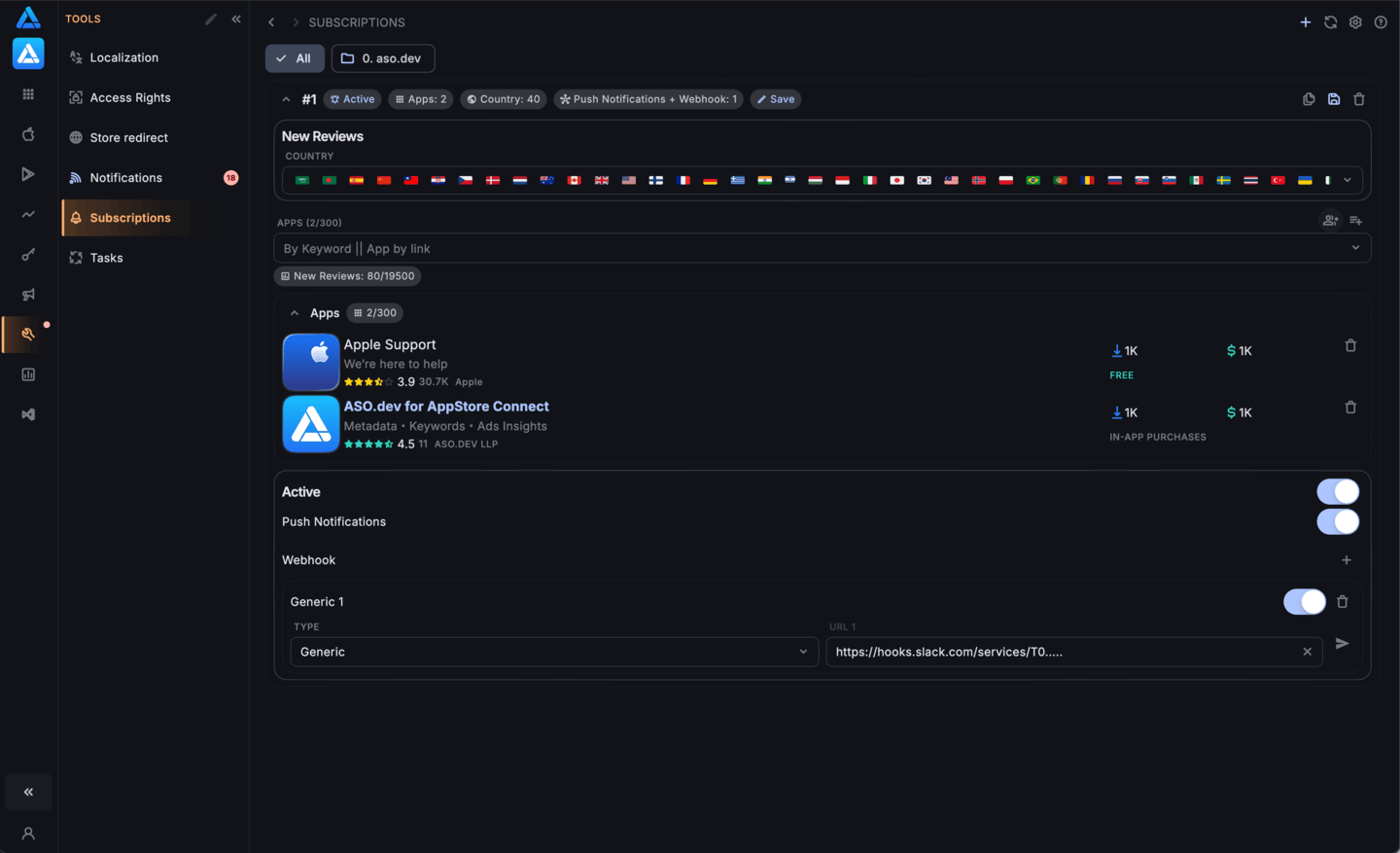


Simple Logic
Section titled “Simple Logic”One subscription answers one question:
what should ASO.dev monitor, where, and for which app?
Formally, one subscription is:
1 app × 1 country × 1 event
Examples:
- monitor new reviews for your app in the United States
- monitor new reviews for a competitor in Germany
- monitor auction state when that event type is available
Limits
Section titled “Limits”Subscription limits are applied per user:
| Plan | Limit |
|---|---|
| Indie | 2,500 |
| Pro | 6,500 |
| Marketing | 13,000 |
The limit shows how many active monitoring rules a user can create.
Note: plan limits and conditions may change in the future at the discretion of the ASO.dev team.
Supported Events
Section titled “Supported Events”The event list will expand. The main purpose of Subscriptions is to automatically catch changes you do not want to miss.
New Reviews
Section titled “New Reviews”The subscription triggers when new reviews appear for the selected app and country.
Use it to track feedback across markets or competitors without manually checking the App Store.
Configuration
Section titled “Configuration”When creating a subscription, choose:
- app
- country
- event type
- delivery channel
If you work with competitors, you can quickly add them from related ASO.dev screens.
Delivery Channels
Section titled “Delivery Channels”Push Notifications
Section titled “Push Notifications”For memberships with access to the ASO analysis: Indie, Pro and Marketing
A push notification is sent when a subscription detects a change. The event also remains in Notifications, so you can open it later.
Webhooks
Section titled “Webhooks”Available only for the Pro and Marketing memberships.
A webhook is triggered on every update and sends the result as CSV.
The CSV file is publicly accessible, does not require authorization, and contains the latest event state.
Webhook features include:
- test button
- stable format for automation
- delivery on every update
Where to get a webhook URL for ASO.dev
In ASO.dev, paste a webhook URL into the webhook field. We will send subscription reports to that URL. Create this URL first in the service where you want to receive reports.
Start with direct integrations: Slack, Discord, Telegram, and Microsoft Teams.
For Telegram, create a bot with BotFather and use a Telegram Bot API URL. For the other services, create the webhook URL in the service settings.
If you need another tool, use Make, Zapier, n8n, or Pipedream as the middle step.
A webhook URL is usually a long HTTPS URL. It works like a secret delivery address for reports, so do not publish it publicly.
After pasting the URL into ASO.dev, click the test button to check that the report reaches the selected service.
Slack
Slack can generate a direct incoming webhook URL for a channel.
Where to get the URL:
- Open the Slack App settings or create a new Slack app.
- Enable
Incoming Webhooks. - Click
Add New Webhook to Workspace. - Choose the channel where reports should arrive.
- Copy the URL that starts with
https://hooks.slack.com/services/.... - Paste this URL into ASO.dev and send a test.
If the test does not appear in the channel, use Make, Zapier, n8n, or Pipedream: copy the webhook URL from the automation tool, paste it into ASO.dev, then add a Slack message step.
Discord
Discord can generate a webhook URL for a specific channel.
Where to get the URL:
- Open the server or channel settings. You need permission to manage webhooks.
- Go to
Integrations->Webhooks. - Create a new webhook.
- Choose the channel where reports should arrive.
- Copy the webhook URL.
- Paste this URL into ASO.dev and send a test.
If the test does not appear in the channel, use Make, Zapier, n8n, or Pipedream and send the report to Discord through a separate step.
Telegram
Telegram does not provide a simple webhook URL that you can copy from a chat or channel. For direct delivery, create a Telegram bot with @BotFather and use the Telegram Bot API URL.
Where to get the URL for ASO.dev:
- Open
@BotFatherin Telegram and send/newbot. - Set the bot name and username, then copy the bot token.
- Add the bot to the chat, group, or channel where reports should arrive. For a channel, make the bot an administrator.
- Send any message in that chat, or press
Startin a direct chat with the bot. - Open
https://api.telegram.org/bot<BOT_TOKEN>/getUpdatesand find thechat.idvalue. For a public channel, you can use@channel_username. - Build the Telegram Bot API URL:
https://api.telegram.org/bot<BOT_TOKEN>/sendMessage?chat_id=<CHAT_ID> - Paste this URL into ASO.dev and send a test.
In ASO.dev, paste the Telegram Bot API URL.
Do not paste a t.me link, a separate bot token, or a URL from an automation service.
The URL contains the bot token, so keep it secret.
Microsoft Teams
For new setups, use Teams Workflows. Avoid choosing old Teams Connectors for new integrations.
Where to get the URL:
- Open the target channel or chat in Teams.
- Select
More options->Workflows. - Choose a webhook alerts template for a channel or chat.
- Save the workflow.
- Copy the webhook URL from the workflow page.
- Paste this URL into ASO.dev and send a test.
If the report should look like a card or a message in a specific format, add formatting inside the Teams Workflow.
Integrations through Make, Zapier, n8n, or Pipedream
Use this option when the target service does not provide a ready webhook URL or when the report needs to be forwarded to another tool.
Where to get the URL for ASO.dev:
- Create a new scenario, zap, or workflow in Make, Zapier, n8n, or Pipedream.
- Choose an incoming webhook as the first step:
- Make:
Webhooks->Custom webhook - Zapier:
Webhooks by Zapier->Catch Hook - n8n:
Webhook - Pipedream:
HTTP / Webhook
- Make:
- Copy the URL shown by the service.
- Paste that URL into the subscription webhook channel in ASO.dev.
- Send a test from ASO.dev.
- After the test works, add the next step: send a message or save the report in the target service.
For n8n, use the test URL only while setting up the workflow. After enabling the workflow, paste the production URL into ASO.dev.
Webhook request schema
ASO.dev sends an HTTP POST with Content-Type: application/json. In Make, Zapier, n8n, or Pipedream, fields from the request body can be used in later workflow steps. The schema below applies to a generic webhook. A direct Slack webhook receives a Slack-compatible body with a single text field.
Headers
| Header | Description |
|---|---|
X-ASO-Event-Type | Event type: review for a real review report or notification.webhook.test for a test |
X-ASO-Event-Id | Unique event UUID |
X-ASO-Occurred-At | Event time in UTC, formatted as ISO 8601 |
JSON body
Example of a real review event:
{ "inboxId": 12345, "type": "review", "eventId": "8c3bcb84-8c1c-47f1-b0b4-f56d3af4db5a", "title": "2 review changes", "body": "1 new, 1 updated for Example App (United States)", "appName": "Example App", "countryName": "United States", "severity": 1, "projectId": "demo-project", "appId": "1234567890", "country": "US", "taskRunId": null, "routeName": "AsoReviewsRoute", "deepLinkPath": "/projects/demo-project/aso-reviews?appId=1234567890&country=US&batchId=2f7c8d5e-2b77-4c9f-b671-09a60ce20bcb", "downloadUrl": "https://api.aso.dev/api/notifications/review-batches/2f7c8d5e-2b77-4c9f-b671-09a60ce20bcb/download", "occurredAtUtc": "2026-07-27T10:15:30Z", "data": { "title": "2 review changes", "body": "1 new, 1 updated for Example App (United States)", "appName": "Example App", "countryName": "United States", "routeName": "AsoReviewsRoute", "deepLinkPath": "/projects/demo-project/aso-reviews?appId=1234567890&country=US&batchId=2f7c8d5e-2b77-4c9f-b671-09a60ce20bcb", "downloadPath": "/api/notifications/review-batches/2f7c8d5e-2b77-4c9f-b671-09a60ce20bcb/download", "downloadUrl": null, "batchId": "2f7c8d5e-2b77-4c9f-b671-09a60ce20bcb", "runId": "2f7c8d5e-2b77-4c9f-b671-09a60ce20bcb", "changeMarkerUtc": "2026-07-27T10:15:30Z", "reviewCount": 2, "newCount": 1, "updatedCount": 1, "deletedCount": 0, "appId": "1234567890", "country": "US", "previewReviews": [ { "changeType": "new", "reviewId": "review-123", "dateUtc": "2026-07-27T10:10:00Z", "rating": 5, "author": "Example User", "title": "Great update", "content": "The new version works well.", "developerResponse": null, "developerResponseModifiedUtc": null } ] }}Top-level fields:
| Field | Type | Description |
|---|---|---|
inboxId | integer or null | Notification ID; may be null in a test event |
type | string | Event type |
eventId | UUID | Unique event ID, suitable for deduplication |
title, body | string | Ready-to-use notification title and text |
appName, countryName | string or null | Display names for the app and country |
severity | integer | Event severity level |
projectId, appId, country | string or null | Project, app, and country context |
taskRunId | UUID or null | Background task ID when the event belongs to a task |
routeName, deepLinkPath | string or null | ASO.dev screen and path to the result |
downloadUrl | string or null | Absolute URL for the complete CSV report |
occurredAtUtc | ISO 8601 datetime | Event time in UTC |
data | object | Event-type-specific data |
For type: "review", data also contains:
| Field | Type | Description |
|---|---|---|
batchId, runId | UUID | Report and review-check run IDs |
changeMarkerUtc | ISO 8601 datetime | Time boundary used to collect the changes |
reviewCount | integer | Total number of review changes |
newCount, updatedCount, deletedCount | integer | Counts of new, updated, and deleted reviews |
previewReviews | array | Up to 3 reviews for a quick preview |
Each previewReviews item contains changeType, reviewId, dateUtc, rating, author, title, content, developerResponse, and developerResponseModifiedUtc. Use the top-level downloadUrl for the complete list of changes.
The test button sends an event with type: "notification.webhook.test" and data.test: true. It verifies delivery, but its data object differs from a real review event. If your automation service infers fields only from the test sample, use the schema above or refresh the data structure after the first real report.
How It Works
Section titled “How It Works”- Create a subscription.
- ASO.dev regularly checks the selected app, country, and event.
- If the state changes, an event is created.
- The event appears in Notifications.
- If push or webhook delivery is enabled, ASO.dev sends the event through the selected channels.
When to Use It
Section titled “When to Use It”- you need to monitor reviews continuously
- you want to notice competitor activity quickly
- you need events without manual checking
- you want to send events to an external system by webhook
Difference from Tasks
Section titled “Difference from Tasks”Subscriptions run continuously and create events when something changes.
Tasks run once and create one report or export.